 LuLuMate
What happens when your mower bumps into something
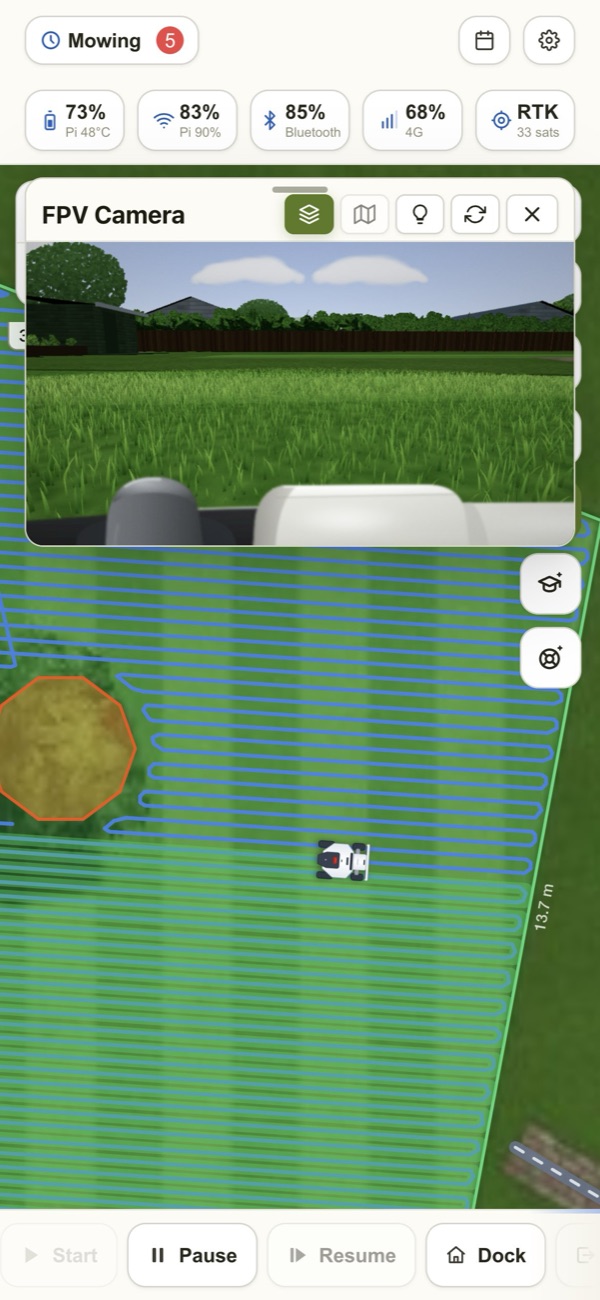
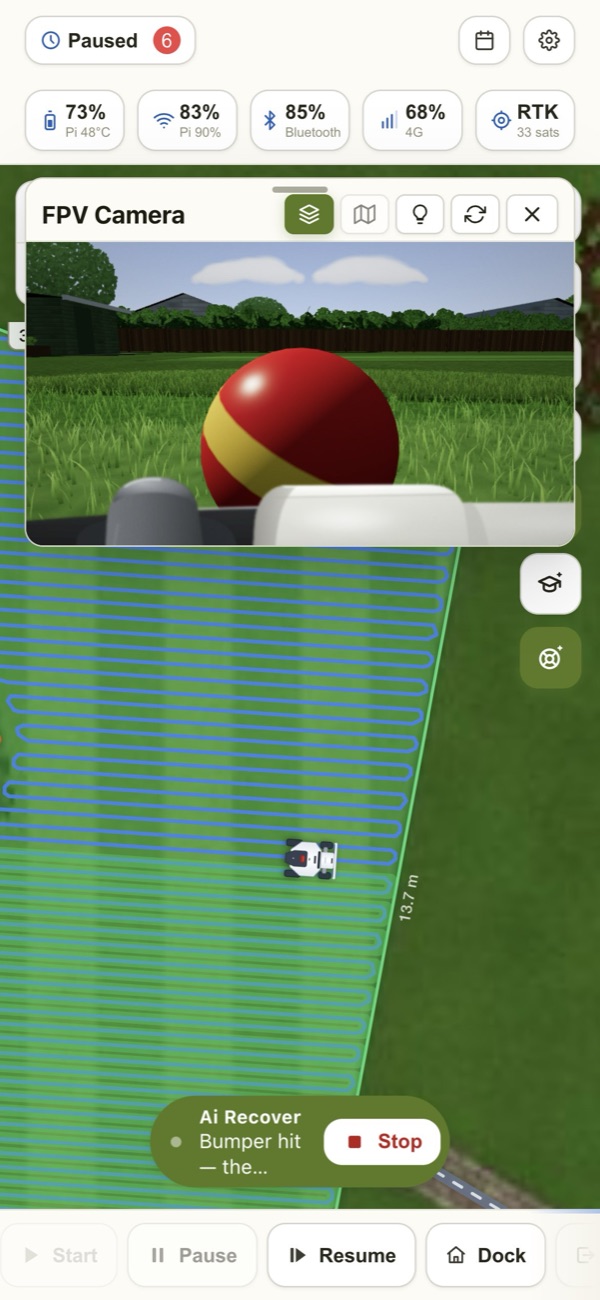
A ball left on the lawn, a fallen branch, a hose across the grass. This is exactly what LuLuMate does — from the bump to mowing again — filmed in the demo garden.
About 35 seconds, no sound. The captions are only in the video — the app itself just shows what's happening.
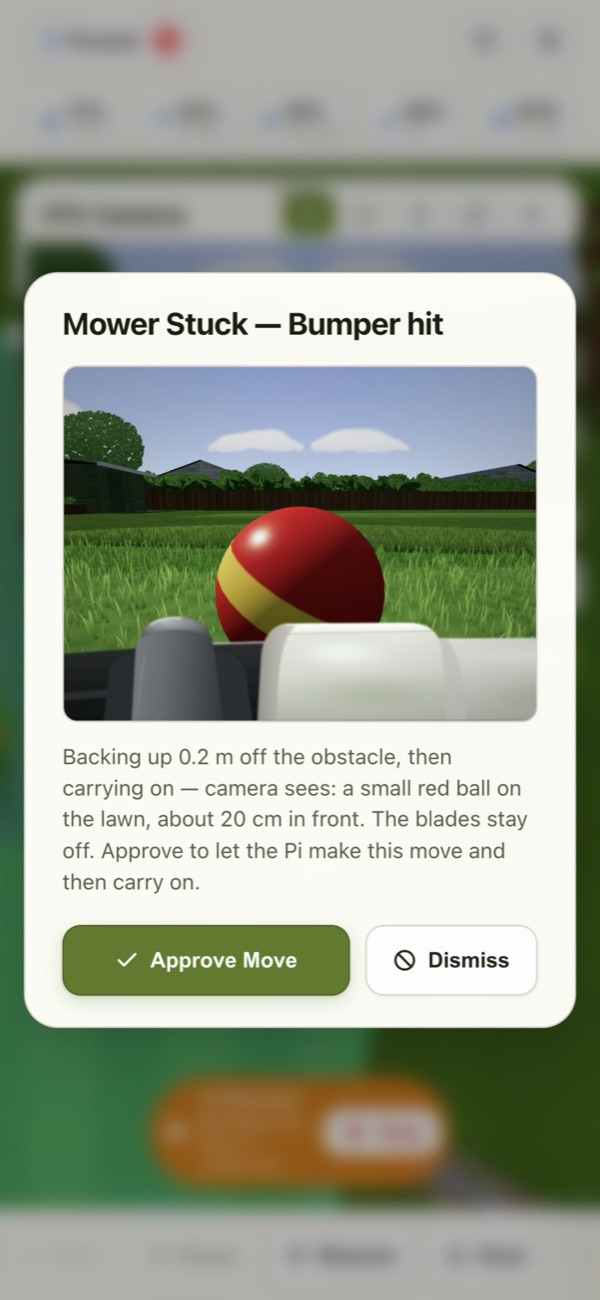
From the bump to mowing again
Set to Ask Me First, this is what you see. Swipe or use the arrows.
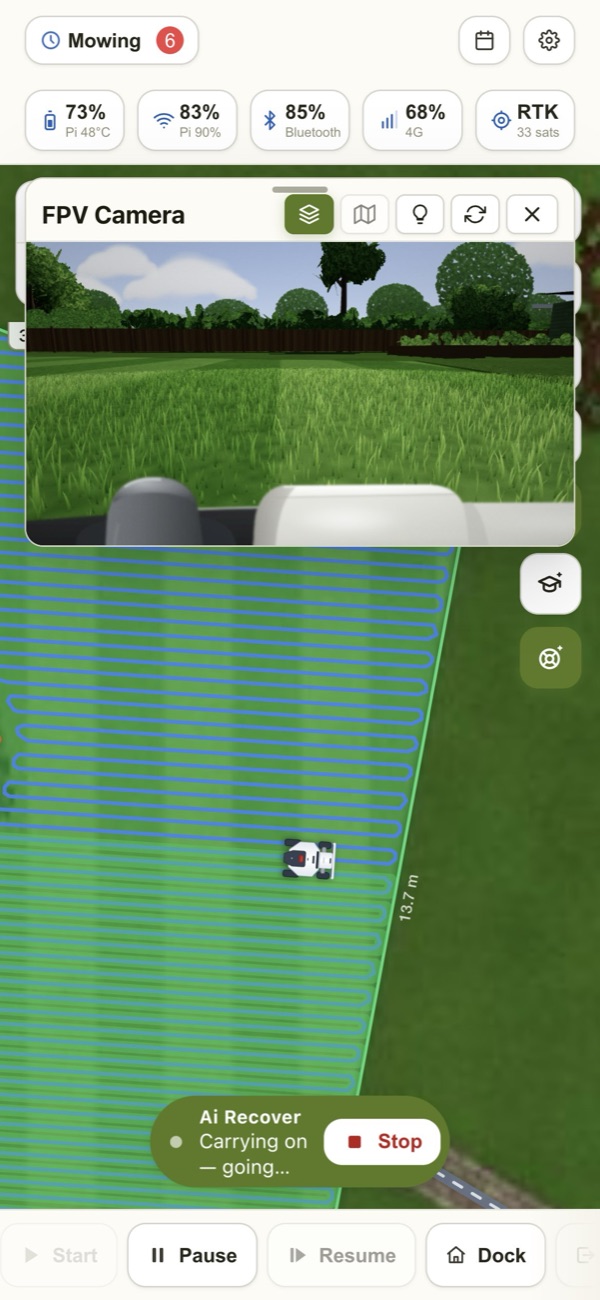
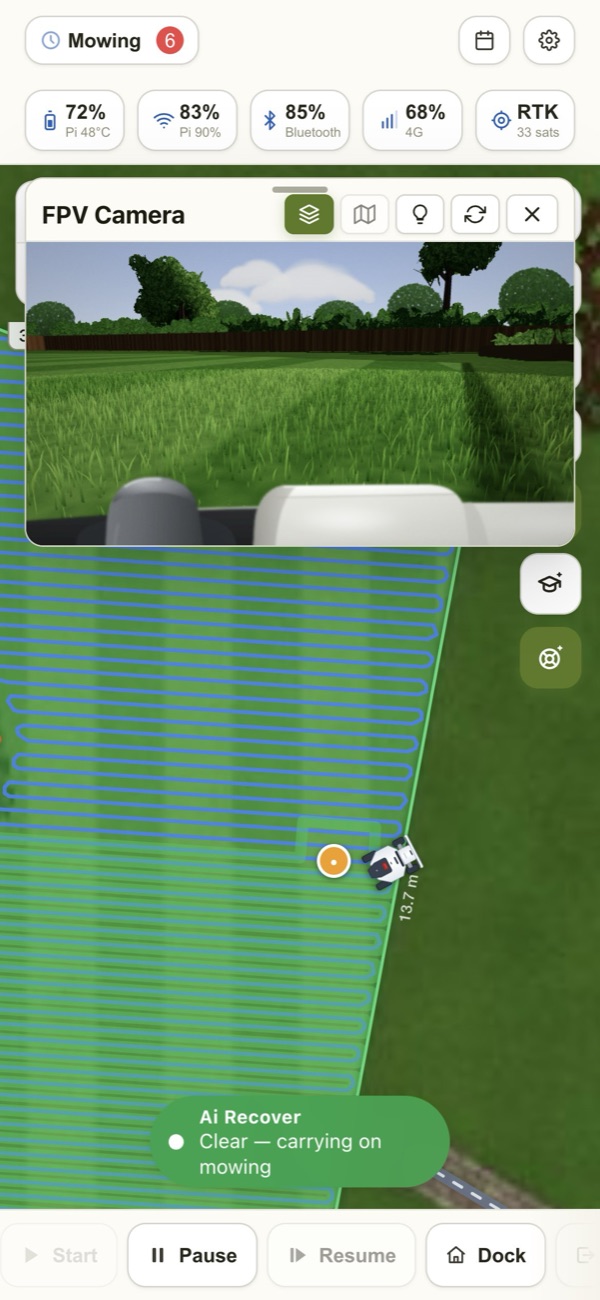
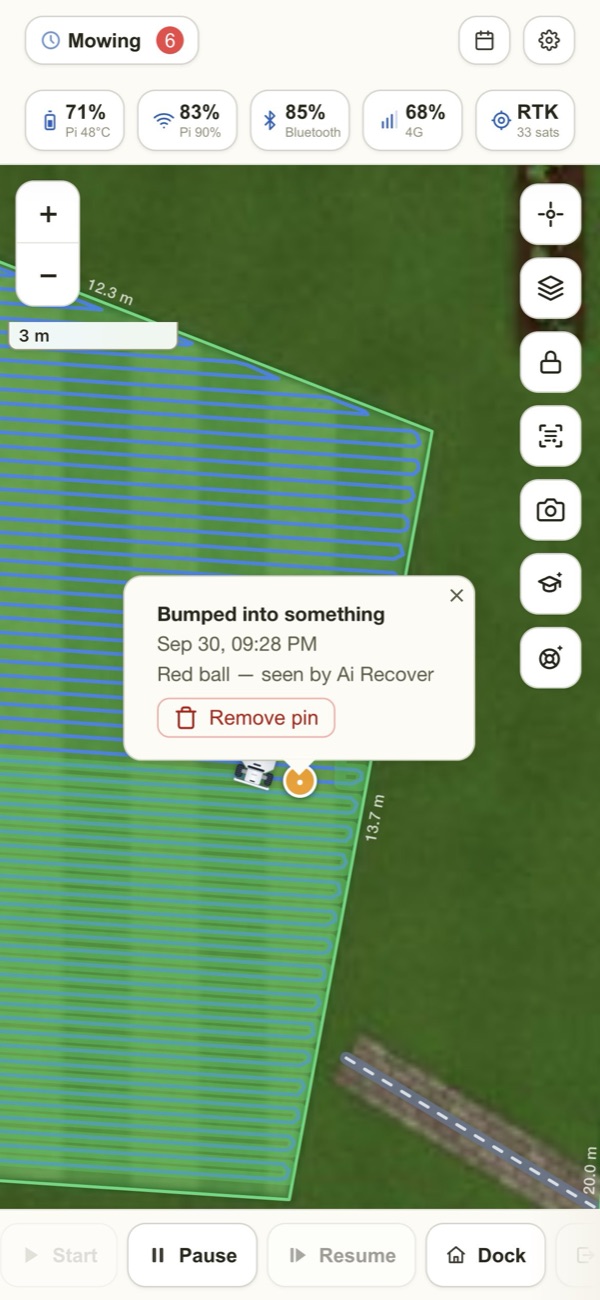
Ask first, or let it get on with it
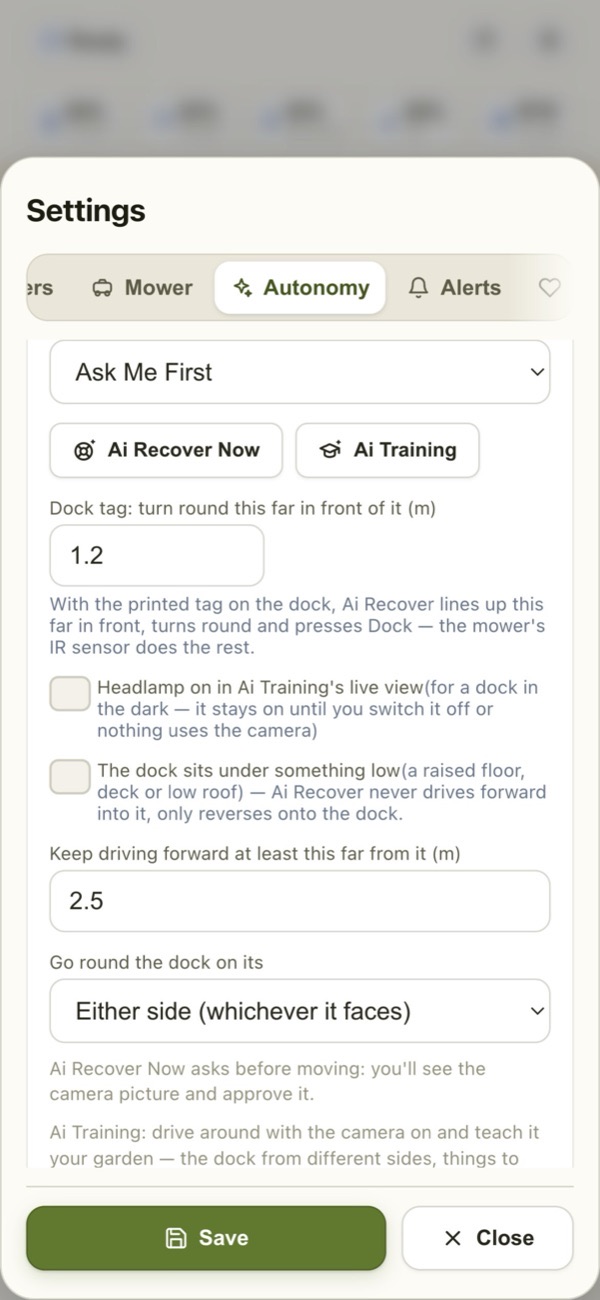
In Settings → Autonomy → Ai Recover, pick how much it does on its own.
Ask Me First Recommended
It stops, looks and asks. Nothing moves until you tap Approve Move. Tap Dismiss to sort it out yourself.
Automatic
It says what it sees and makes the move by itself — handy when you're out. If it can't sort it out you get an alert, and the banner's Stop button ends it at once.
Off
The mower just stops, like it normally would. Move whatever it hit and press Resume.
Small, careful moves — and you're always in charge
- The blades are off for every move Ai Recover makes
- Small moves only — it backs off 20 cm, and turns a bit at a time
- It checks a fresh camera picture before it drives forward — and only backs off a short way, because it can't see behind
- Any bump, lift, tilt or slip stops it on the spot
- It never drives into a no-go zone or off your lawn map
- Stop is on the banner the whole time — one tap and it's over
- If it can't sort it out, it says so and leaves it for you
Teach it your garden
Ai Recover gets better the more it knows about your place. Open Ai Training (Settings → Autonomy) and drive around with the camera on.
- Mark the dock from a few sides — a detector learns it from your pictures, so Find Dock can spot it in a fraction of a second
- Mark things to avoid — a pond edge, a step, the vegetable patch
- Write what to do at tricky spots, like "reverse 0.2 m then resume" — it follows your note first next time
- Record a drive to the dock with the joystick, and it can repeat it
- Ai Runs shows what it saw last time, so you can correct it
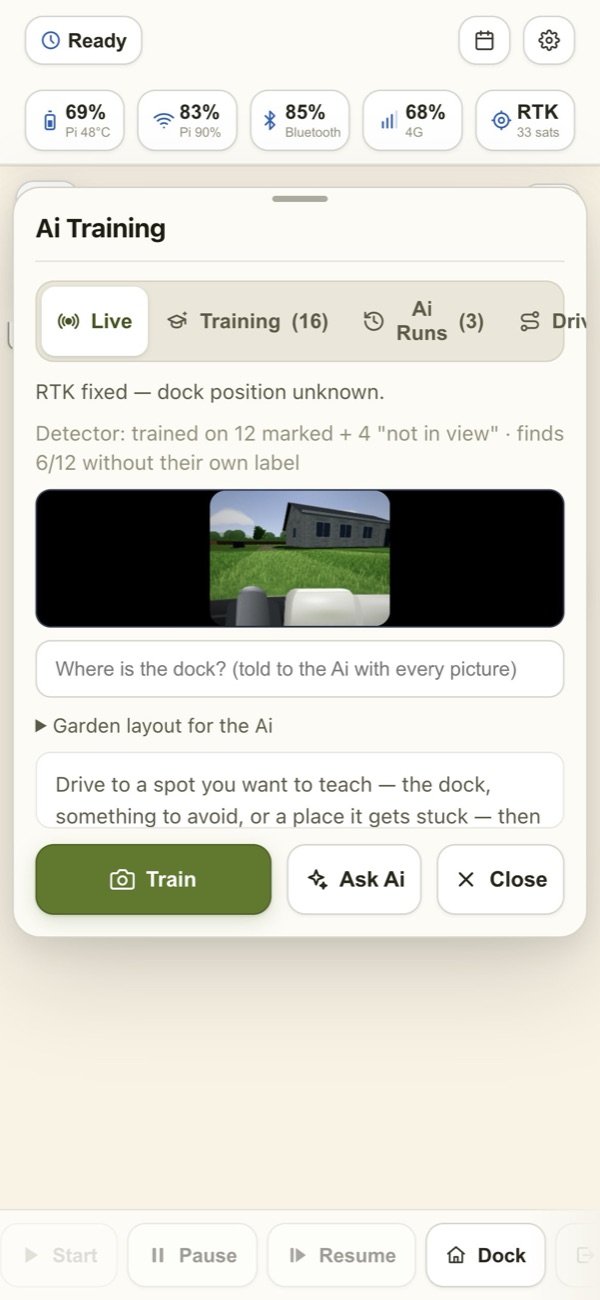
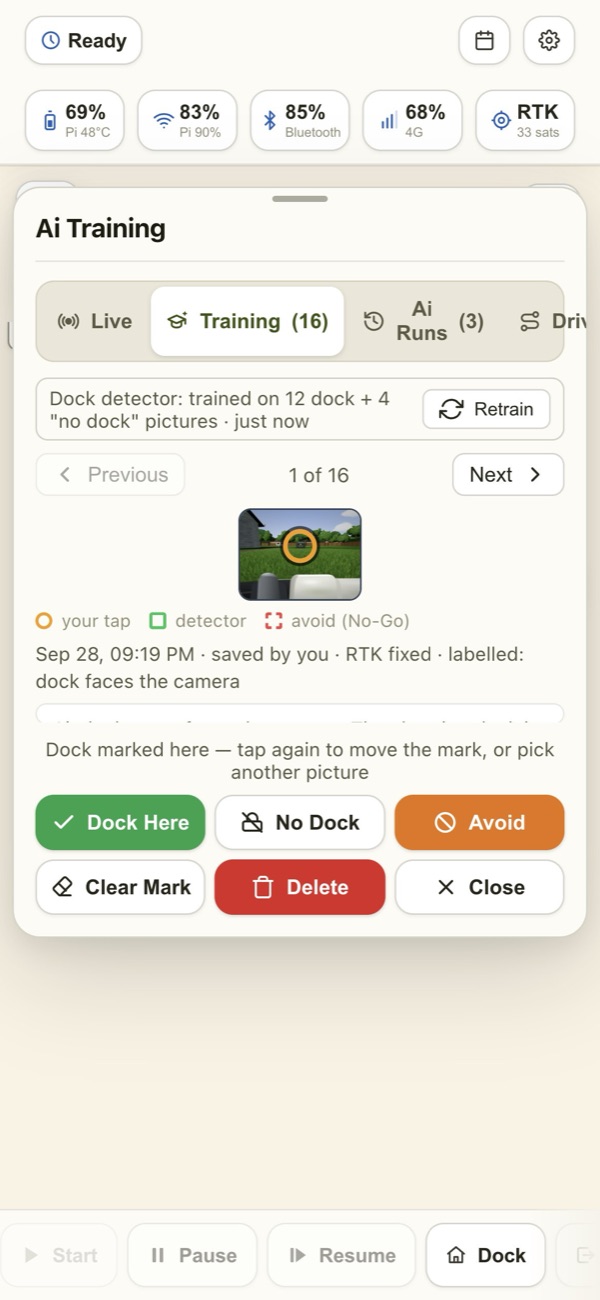
A camera Ai of your choice
Ai Recover looks with a camera Ai that you connect in Settings → Autonomy — your own account with an Ai provider. Pictures only go to it when Ai Recover or Ai Training asks it to look.
Without one, Ai Recover can still back off after a bump and follow your notes; it just can't describe what it sees.
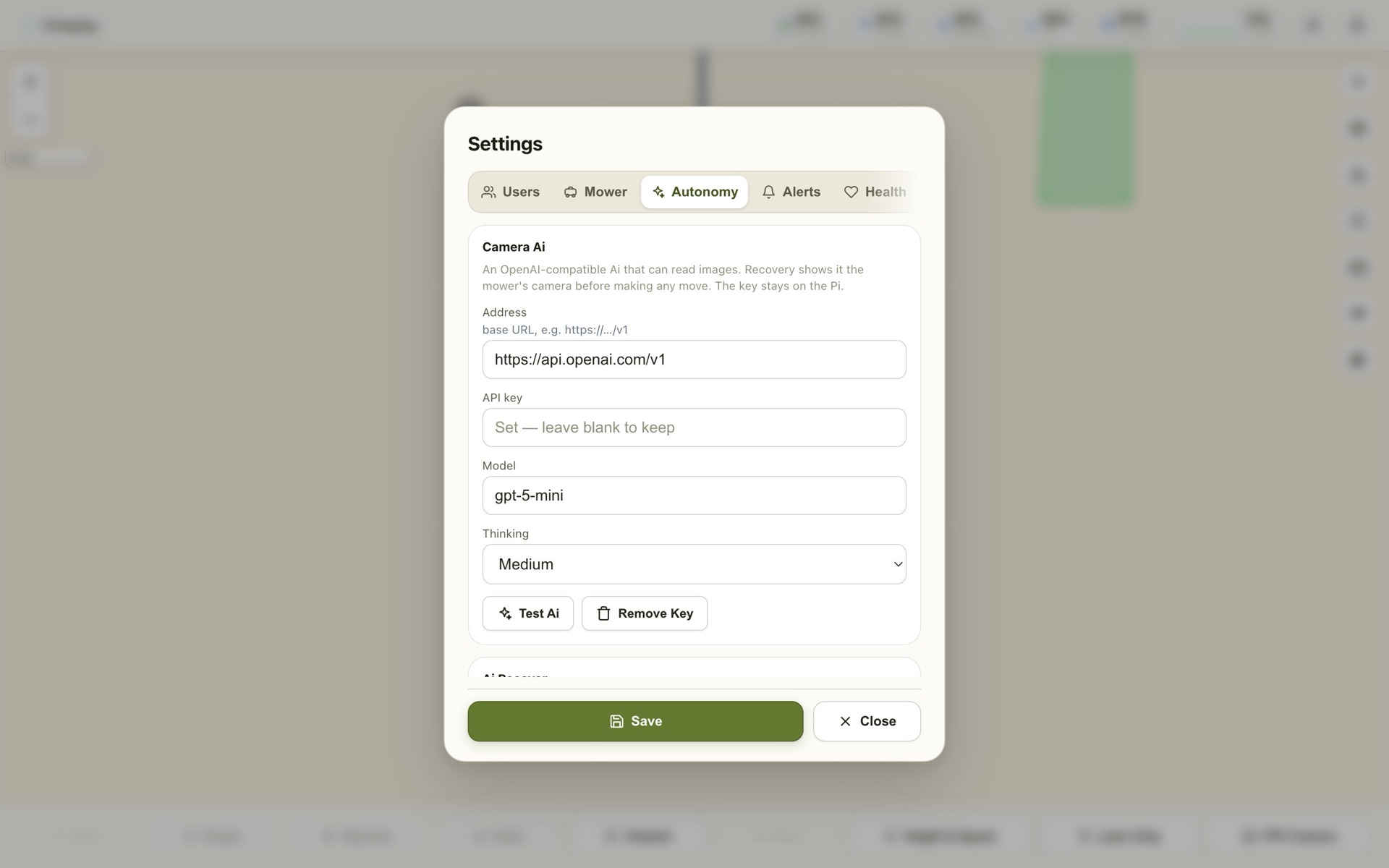
Make it happen in the demo garden
Open the demo
Start the live demo — your own garden, no sign-up.
Start a mow
Tap a lawn on the map and press Start. Open the FPV Camera to watch from the mower.
Drop a ball
Press Try Ai Recover in the bar at the top. A ball lands a couple of metres in front of the mower.
Approve it
Watch it bump, look and ask — then tap Approve Move. Try Automatic in Settings → Autonomy next.